Quota Plugin
The Quota Plugin provides mechanisms for assigning monetary values to resource consumption records generated by the Usage Server, based on pricing rules defined by cloud operators. It can also be configured to automatically lock Accounts that exceed their allocated quota.
ACS does not provide native billing functionalities such as invoice generation. These features must be implemented externally by cloud providers. The Quota Plugin serves as an intermediate layer that outputs monetary values based on resource consumption, which can then be forwarded to external billing systems.
Usage Server Prerequisites
Before configuring the Quota Plugin, you must ensure that the Usage Server is installed and enabled. The Usage Server generates records based on actions performed by the platform and its users, which the Quota Plugin uses as input for its calculations.
The following global settings control the behavior of the Usage Server:
Global Setting |
Description |
|---|---|
|
Controls whether the Usage Server is active in the
environment. Set to |
|
Defines the time when resource consumption statistics will
be aggregated for the first time after the Usage Server
starts (format: |
|
Specifies the timezone for the |
|
Specifies the time interval (in minutes) between each aggregation of resource consumption statistics. |
|
Specifies the timezone used for statistics aggregation. For instance, if aggregation is daily, it determines in which timezone a day is considered. |
Note
After changing any of these global settings, you must restart the Usage Server service for the changes to take effect.
Usage Aggregation
Typically, the Usage job runs every hour (60 minutes) or every day (1440 minutes) to aggregate resource consumption into usage records. Hourly aggregation provides greater granularity but generates more database records. Daily aggregation groups records together, consuming less storage space and taking less time to process, but with reduced granularity.
The aggregation interval only affects how resource consumption is divided into usage records. It does not affect the values applied by the Quota Plugin. Regardless of the aggregation interval, the actual consumed time is accounted for accurately. For example, an Instance running continuously for two consecutive days will generate 48 one-hour records when hourly aggregation is used, or two 24-hour records when daily aggregation is configured.
Enabling the Quota Plugin
The Quota Plugin is disabled by default. To enable it, go to Global Settings and configure the following settings:
Global Setting |
Description |
|---|---|
|
Controls whether the Quota Plugin is enabled. Set to |
|
Enables JavaScript interpretation, which is used to evaluate
quota tariff activation rules. This setting must be |
|
Specifies the symbol used when representing monetary values
(e.g. |
|
Specifies the locale used for formatting monetary values
(e.g. |
|
Controls whether an Account is automatically locked if its quota balance goes below zero. |
Note
After changing quota.enable.service or quota.enable.enforcement, you must
restart both the Management Server and the Usage Server services for the changes to
take effect.
Once the Quota Plugin is enabled, the last step of the Usage job will calculate the
quota consumption for each Account based on the configured quota tariffs. You can
also manually trigger quota calculation for all unprocessed usage records by
calling the quotaUpdate API.
Quota Tariffs
Overview
To define monetary values for cloud resource consumption, the Quota Plugin introduces the concept of tariffs. Each tariff is associated with a usage type, which determines the kind of resource consumption to which the tariff applies (for example, running virtual machines, volumes, or network traffic). The measurement unit also depends on the usage type. Multiple tariffs may be associated with the same usage type, allowing cloud operators to implement different pricing strategies.
The simplest form of tariff applies a fixed value per unit of resource consumed per month. For example, a tariff may apply 18.25 monetary units for each public IP used for a total of one month:
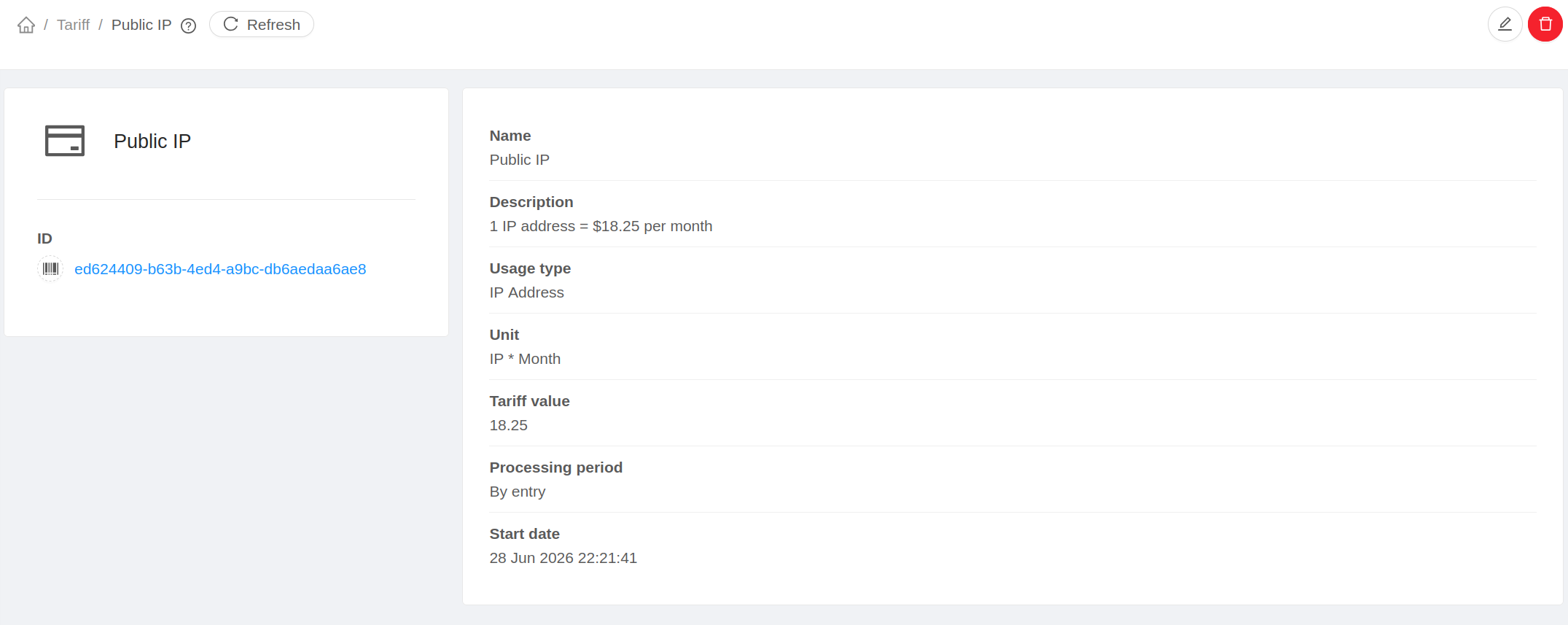
Quota tariffs are applied to each usage record. Therefore, the calculated value is proportional to the amount of resource consumption recorded. For example, if a public IP is used for half a month, the tariff above will result in a value of 9.125.
Tariffs may apply either fixed values, or dynamic values through Activation Rules.
Activation Rules
Quota tariffs can also calculate dynamic values based on the resource’s context through activation rules. Activation rules consist of JavaScript expressions that must return either a numeric or a boolean value. The returned value determines how the tariff is applied:
Return type |
Effect |
|---|---|
Numeric |
Uses the returned value as the tariff value. |
|
Applies the configured base tariff value. |
|
Applies a tariff value of zero. |
Important
Activation rules must not use the return keyword. Instead, the result of
the last evaluated expression is automatically used as the return value of
the activation rule.
During rule evaluation, ACS automatically exposes resource metadata through
preset variables. These variables provide access to information about the
resource being processed, its attributes, and other execution context,
allowing organizations to implement custom pricing policies. The list of
available preset variables for each resource type can be obtained through the
quotaPresetVariableList API.
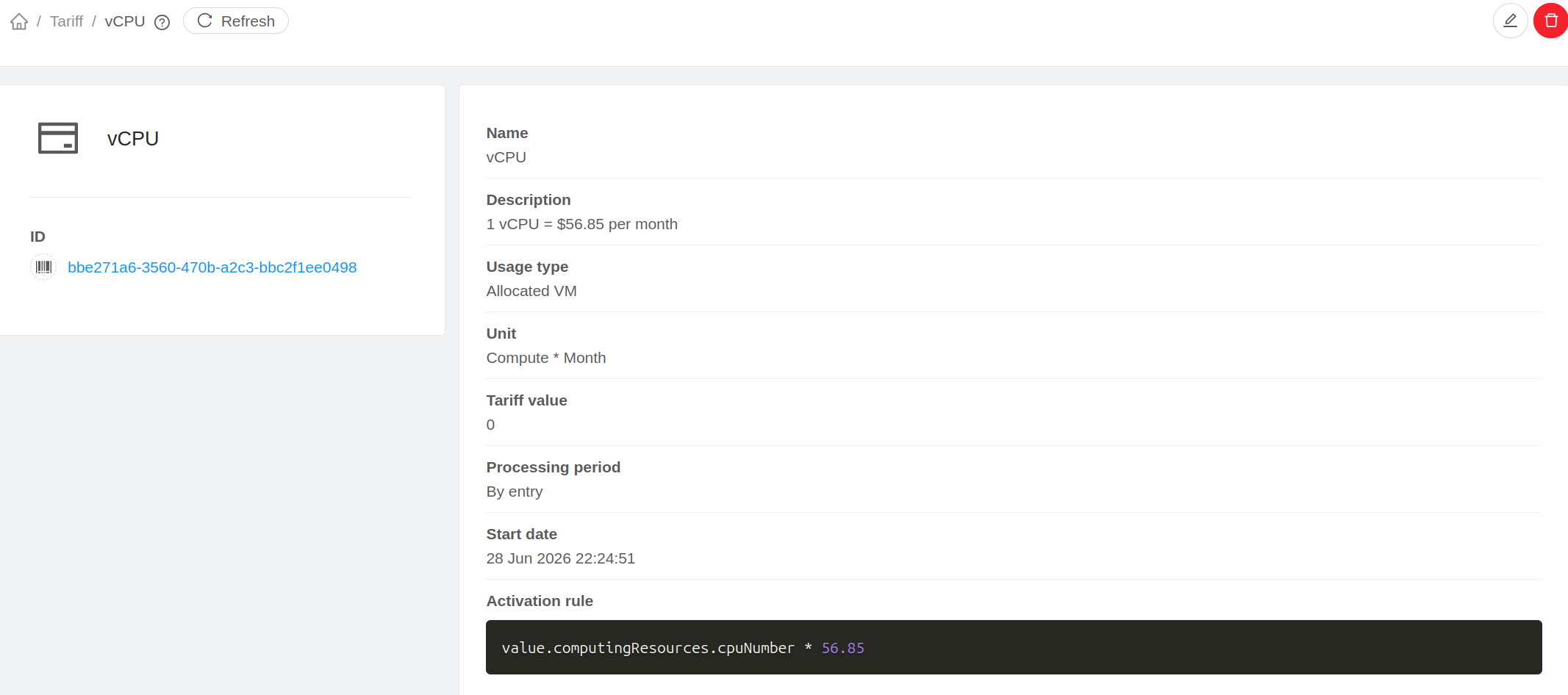
The following example demonstrates a tariff that applies 56.85 monetary units to each vCPU allocated for a total of one month:
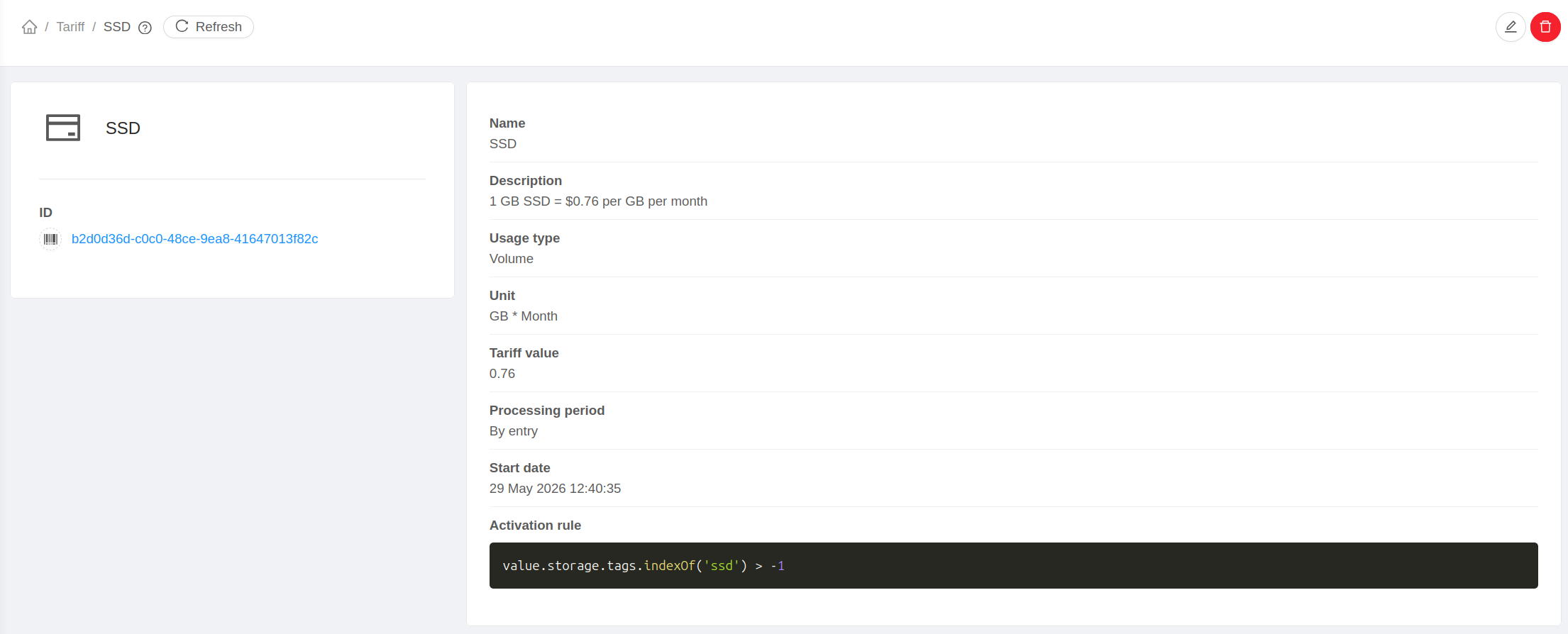
This second example shows a tariff that applies 0.76 monetary units per GB
of volume allocated for a month in primary storage pools that contain the tag
ssd:
Important
Reserved variable declaration keywords such as var, let, and
const must not be used in activation rules. The expression processing
engine is instantiated only once per processing cycle; therefore, using
these keywords results in the error
Identifier has already been declared. To declare variables, omit the
JavaScript declaration keywords.
Important
When writing activation rules that return a numeric value, consider the
measurement unit of the corresponding tariff type. For example, the
VOLUME tariff type is measured in GB * Month. Therefore, if an
operator wants to charge 0.76 monetary units per GB allocated during a
month, the rule should simply return 0.76 instead of multiplying it by
the volume size.
Note
Activation rules are interpreted using ECMAScript 5.1. Only language features supported by this version are available.
Tariff Processing Order
The processing order allows tariffs associated with the same usage type to depend on the results of previously executed tariffs. This makes it possible to implement pricing models such as cumulative charges, discounts, taxes, or additional fees.
Tariffs are processed in ascending order of their position. A tariff with
position 1 is executed before one with position 2. If two tariffs
share the same position, the most recently added tariff is executed first.
As each tariff is processed, ACS makes the results of all previously executed
tariffs available through the preset variable lastTariffs. This variable is
a list of objects containing the id and value of each previously
executed tariff, allowing subsequent tariffs to reuse earlier calculations.
For example, if there are three tariffs with the same usage type, ordered as
tariff-01, tariff-02, and tariff-03:
When processing
tariff-01, the value oflastTariffsis empty:[]When processing
tariff-02, the value oflastTariffsis:[ { "id": <uuid-of-tariff-01>, "value": <result-of-tariff-01> } ]
When processing
tariff-03, the value oflastTariffsis:[ { "id": <uuid-of-tariff-01>, "value": <result-of-tariff-01> }, { "id": <uuid-of-tariff-02>, "value": <result-of-tariff-02> } ]
The following example demonstrates how lastTariffs can be used to apply a
5% discount to a previously calculated tariff when its value exceeds 100
monetary units. This tariff must be configured with a higher position than the
tariff whose value is being discounted.
Suppose the first tariff charges 150 monetary units. A second tariff, configured with a higher position, can then apply the discount through its activation rule:
firstCharge = lastTariffs[0].value;

if (firstCharge > 100) {
    firstCharge * -0.05
} else {
    0
}
Tariff Examples
The following examples illustrate common tariff configurations using both fixed values and activation rules. Unless stated otherwise, all monetary values represent one month of resource consumption.
Each example lists only the relevant tariff attributes. Unless specified otherwise, no activation rule is required.
Compute Resources
Charging a Fixed Monthly Fee per Virtual Machine
To charge a fixed amount of 1 monetary unit per allocated virtual machine per month, configure a tariff with:
Type:
ALLOCATED_VMValue:
1
Charging per Allocated CPU Capacity
To charge 0.05 monetary units per MHz allocated per month, configure:
Type:
ALLOCATED_VMValue:
0Activation rule:
price = 0.05;
allocatedCpuMHz = value.computingResources.cpuNumber *
                  value.computingResources.cpuSpeed;
price * allocatedCpuMHz
Charging per Allocated Memory
To charge 10 monetary units per GiB of allocated memory per month, configure:
Type:
ALLOCATED_VMValue:
0Activation rule:
price = 10;
usageInGiB = value.computingResources.memory / 1024;
price * usageInGiB
Charging a Specific Account
To charge 2 monetary units per running virtual machine per month only for
a specific Account, with UUID c1558d9c-45bf-4721-8b4d-c67f911e3f65, configure:
Type:
RUNNING_VMValue:
2Activation rule:
account.id === 'c1558d9c-45bf-4721-8b4d-c67f911e3f65'
Charging Multiple Specific Accounts
To charge 2 monetary units per running virtual machine per month only for
a predefined set of Accounts, with UUIDs c1558d9c-45bf-4721-8b4d-c67f911e3f65
and 294ec2e8-89f7-422e-b201-6cd9a4d0e73b, configure:
Type:
RUNNING_VMValue:
2Activation rule:
[
    'c1558d9c-45bf-4721-8b4d-c67f911e3f65',
    '294ec2e8-89f7-422e-b201-6cd9a4d0e73b'
].indexOf(account.id) > -1
Charging Different Prices per Domain
To charge 3 monetary units per running virtual machine per month for
a specific Domain, with UUID c875819c-2e76-40b0-9755-f3c628ff4743, and 2 monetary units for all other Domains, configure:
Type:
RUNNING_VMValue:
0Activation rule:
if (domain.id === 'c875819c-2e76-40b0-9755-f3c628ff4743') {
    3
} else {
    2
}
Charging a Domain and Its Subdomains
To charge 2 monetary units per running virtual machine per month for all
Accounts belonging to a Domain with customer-A in its path, as well as any
of its subdomains, configure:
Type:
RUNNING_VMValue:
2Activation rule:
domain.path.indexOf('customer-A') > -1
Storage Resources
Charging a Fixed Monthly Fee per Volume
Important
The VOLUME tariff type is measured in GB * Month. Since
value.size is provided in MiB, the activation rule first converts the
size to GB by dividing it by 1024. The Quota Plugin then
multiplies the returned value by the volume size in GB. Therefore, to charge
a fixed monthly amount regardless of the volume size, the activation rule
must divide the desired charge by the volume size.
To charge 1 monetary unit per volume per month, configure:
Type:
VOLUMEValue:
0Activation rule:
sizeInGB = value.size / 1024;
1 / sizeInGB
Charging per Allocated Storage
To charge 0.2 monetary units per GB of HDD storage per month, assuming that
the disk offering has hdd in its name, configure:
Type:
VOLUMEValue:
0Activation rule:
if (value.diskOffering.name.indexOf('hdd') !== -1) {
    0.2
} else {
    0
}
Volume Snapshot Charges
Volume snapshot tariffs can be configured similarly to volume tariffs.
To charge a fixed monthly fee per volume snapshot, configure a tariff of type
SNAPSHOT using the same activation rule shown in
Charging a Fixed Monthly Fee per Volume.
To charge 0.2 monetary units according to the actual volume snapshot size in GB, configure:
Type:
SNAPSHOTValue:
0.2
Template and ISO Charges
Templates and ISOs can also be charged either with a fixed monthly fee or according to their stored size.
To charge 0.2 monetary units according to the actual stored size in GB, configure:
Type:
TEMPLATEorISOValue:
0.2
Network Resources
Charging for Specific Network Offerings
To charge 30 monetary units per month only for networks created from
offerings containing .gold. in their name, configure:
Type:
NETWORKValue:
0Activation rule:
if (value.networkOffering.name.indexOf('.gold.') !== -1) {
    30
} else {
    0
}
Charging Public Network Traffic
To charge 0.01 monetary units per GB transferred, configure two tariffs,
one for NETWORK_BYTES_SENT and another for NETWORK_BYTES_RECEIVED:
Value:
0.01
Note
NETWORK_BYTES_SENT and NETWORK_BYTES_RECEIVED account only for public
traffic that passes through the Virtual Router. Traffic exchanged exclusively
within guest networks or through external networking devices is not included
accounted by these usage types.
Credits Management
The Quota Plugin provides credit management functionality for Accounts.
Credits can be added or removed for each Account through the quotaCredits
API, as well as through the graphical interface.
The following additional credit management options are available:
Min Balance: Defines the minimum balance an Account can have. When the Account balance falls below this value, a notification email is sent to the Account.
Enforce Quota: Controls whether the Account is automatically locked when it runs out of credits. Overall enforcement is controlled by the
quota.enable.enforcementglobal setting.
If an Account is locked due to insufficient credits, adding enough credits to raise the balance above the configured minimum balance automatically unlocks the Account.
Account balances, credit addition history, and quota consumption can be monitored through the reports described in Quota Reports.
Quota Reports
The Quota Plugin provides reports that allow cloud operators and Account users to monitor quota consumption, Account balances, and credit addition history. These reports are available under Quota → Summary.
Consumption Tab
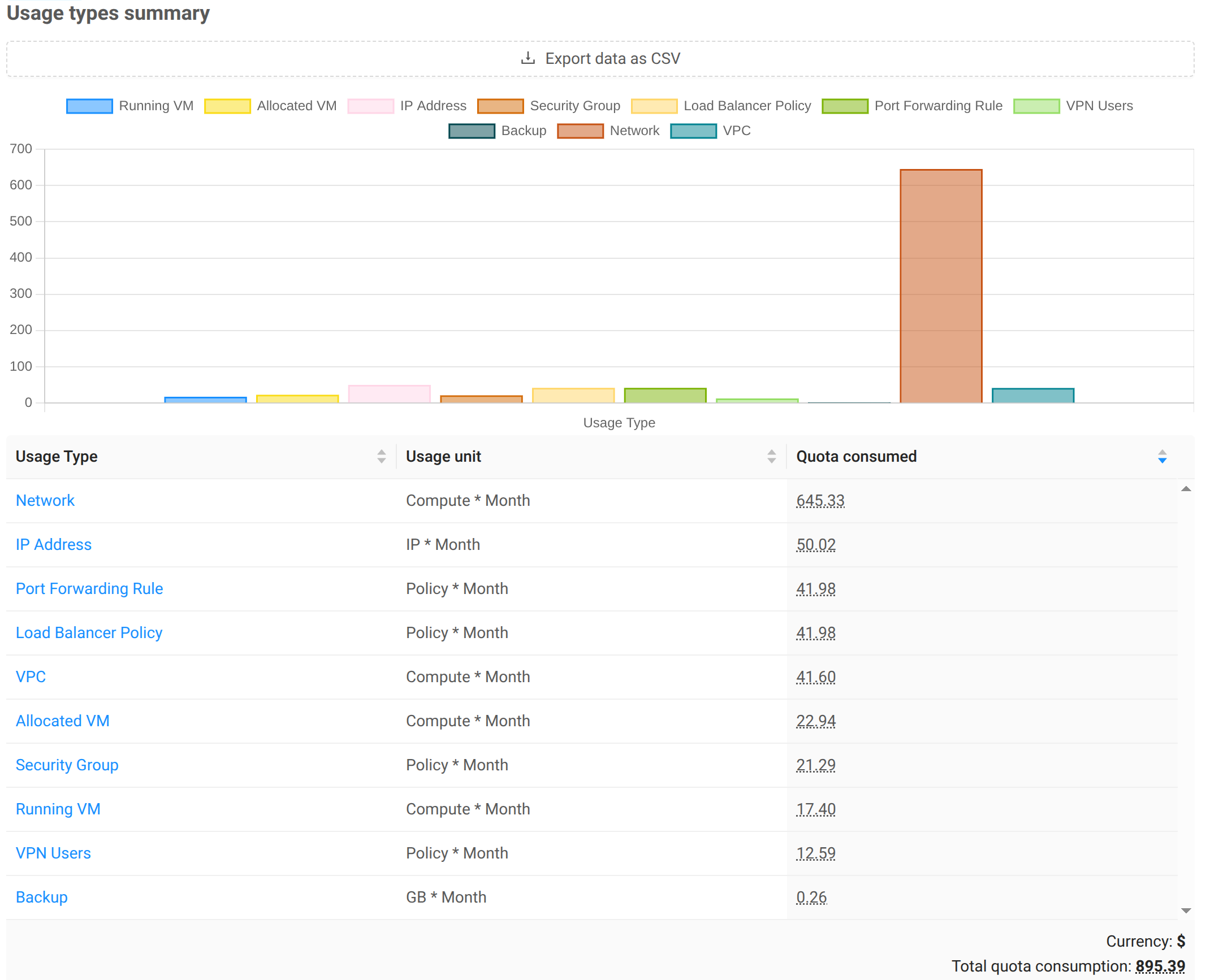
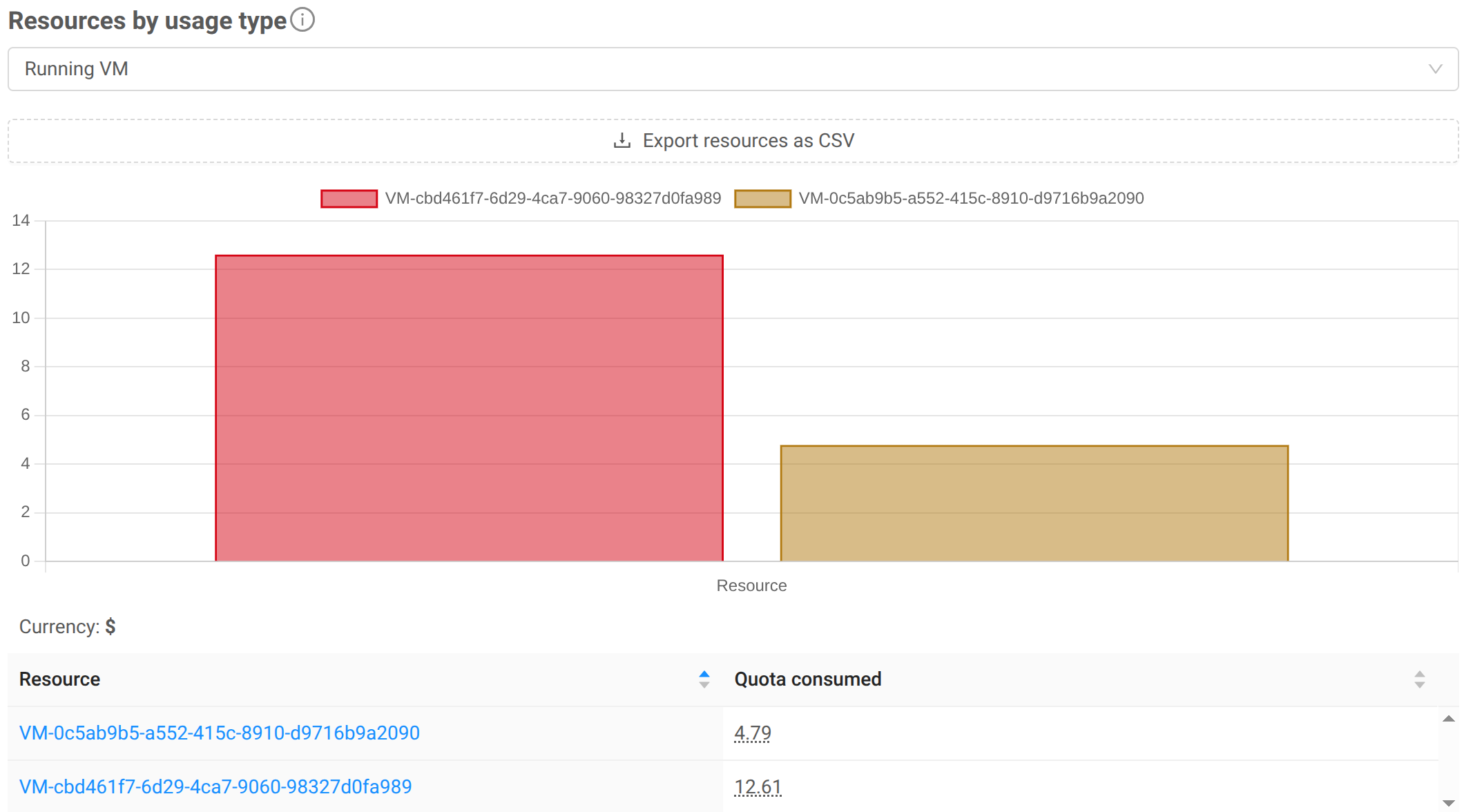
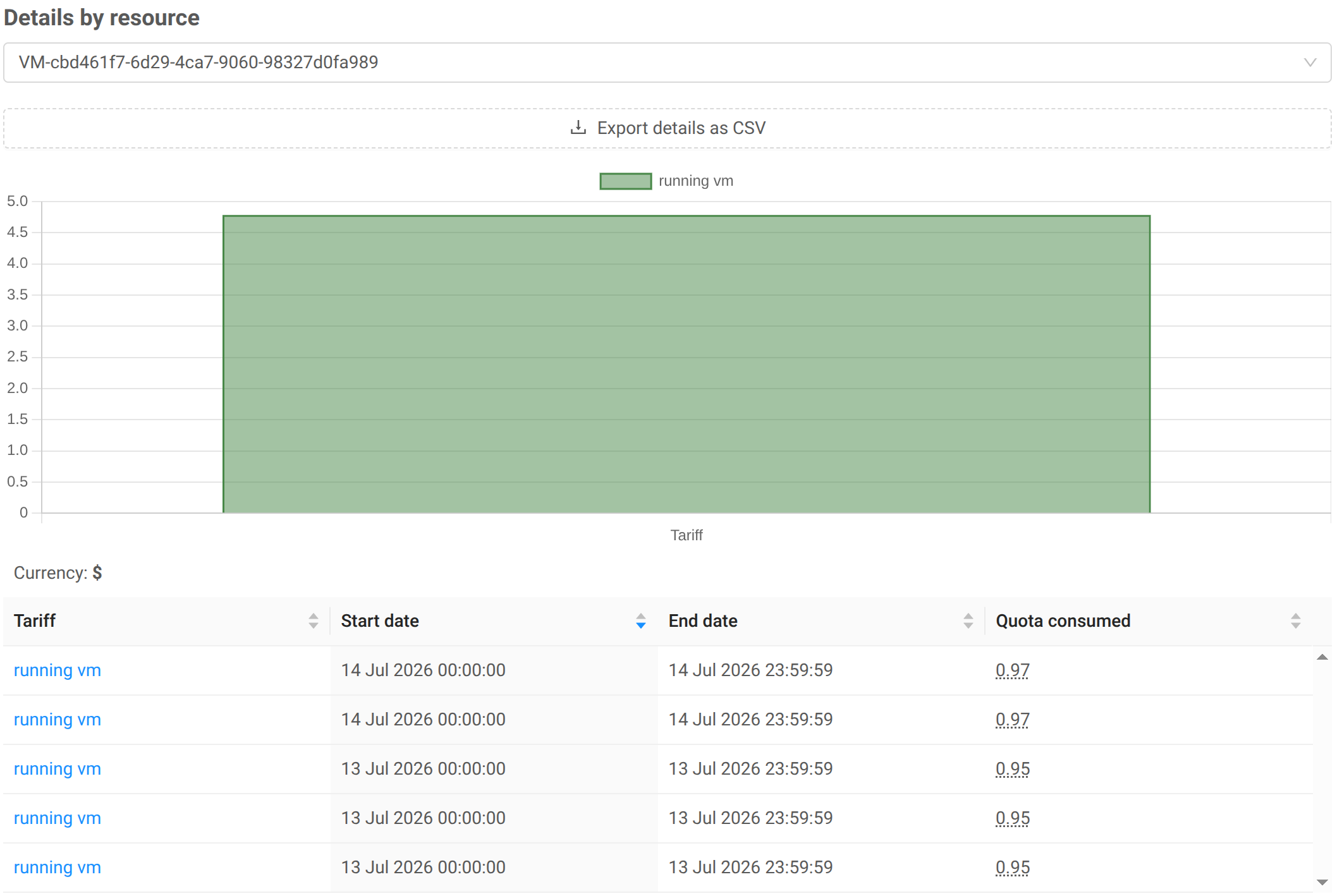
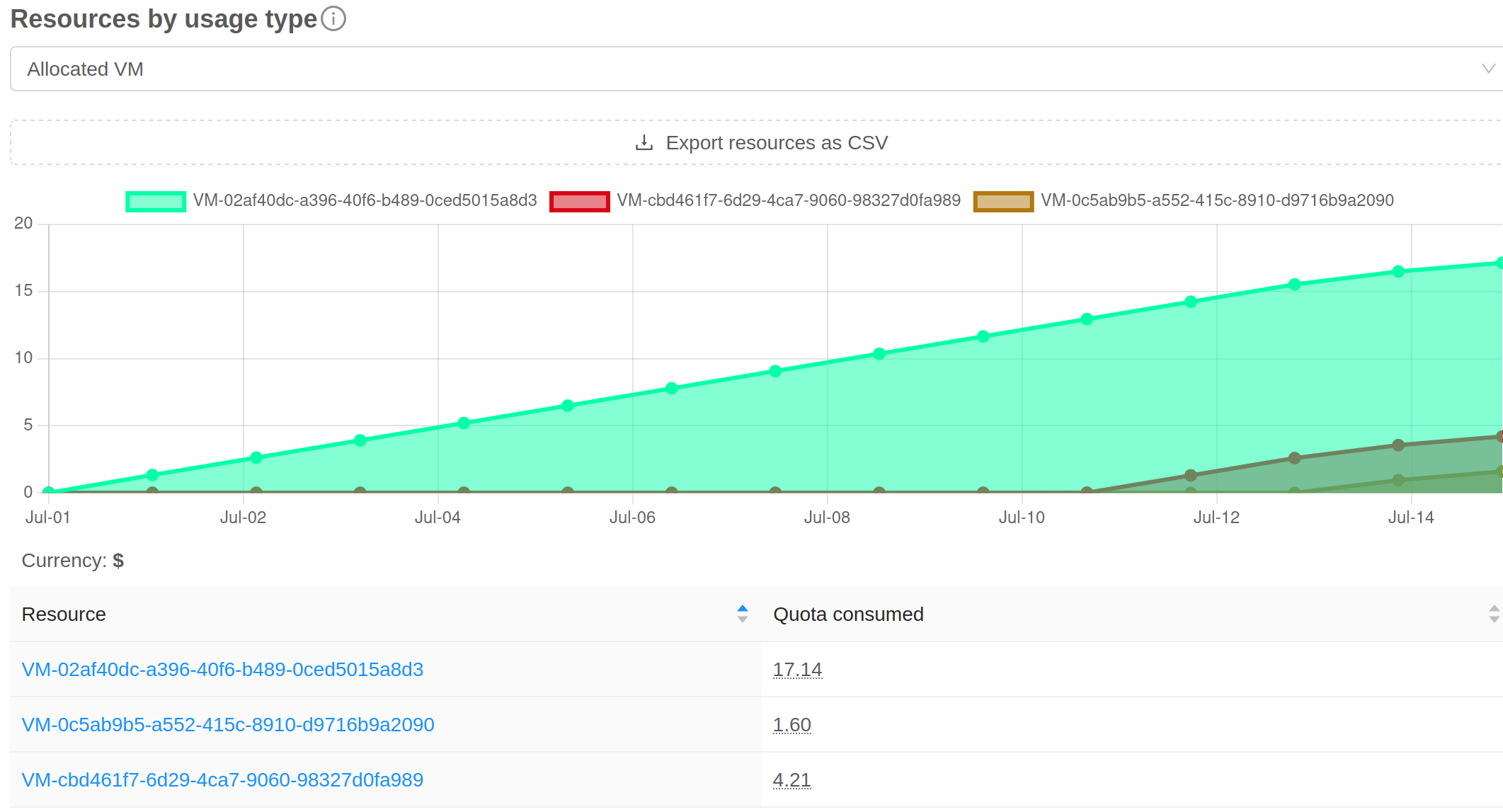
The Consumption tab shows how credits were consumed by cloud resources. The following reports are available:
Summary: Displays quota consumption grouped by usage type.
Consumption by resources of a usage type: Displays quota consumption broken down by individual resources within a usage type.
Consumption of a given resource: Displays detailed quota consumption for a specific resource.
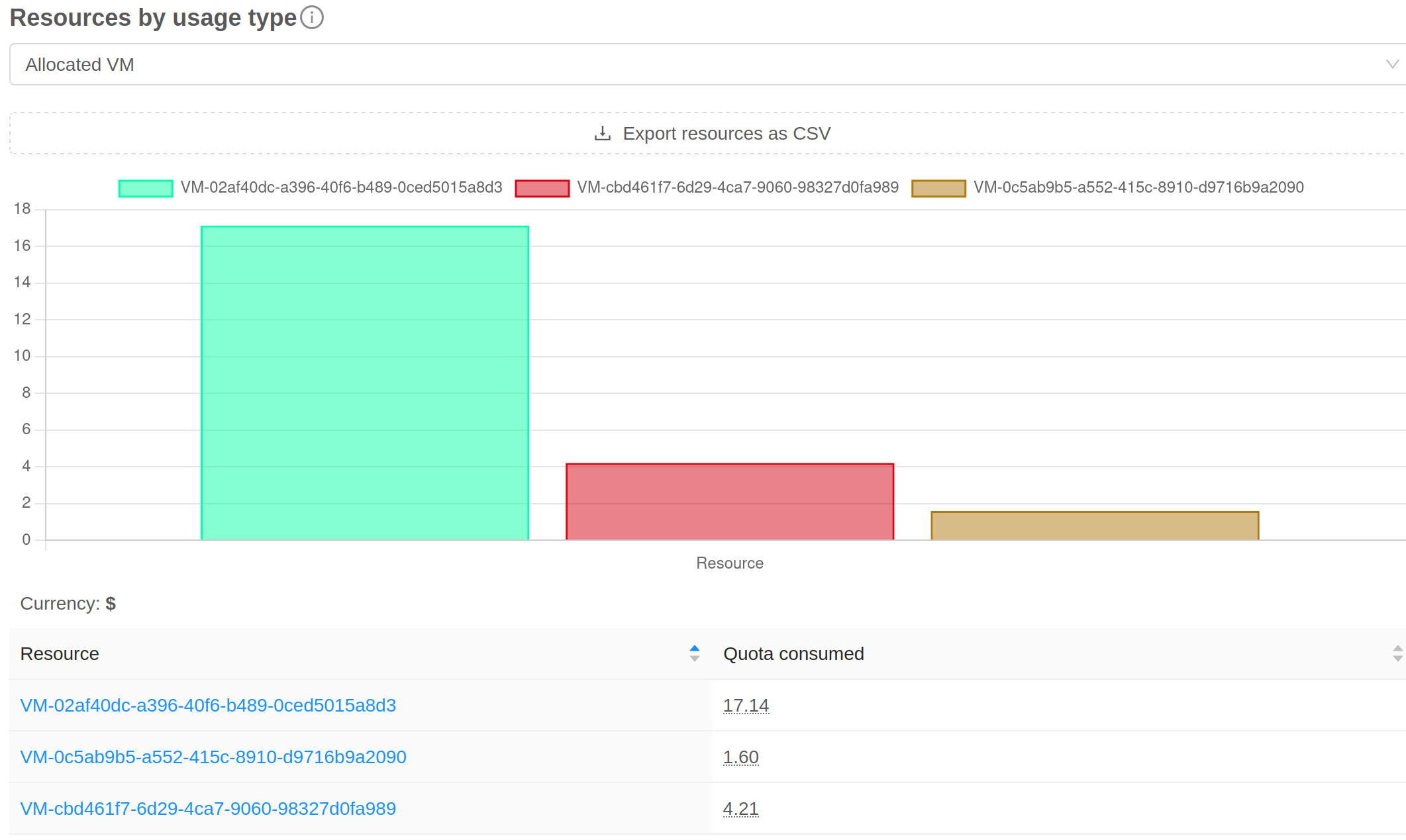
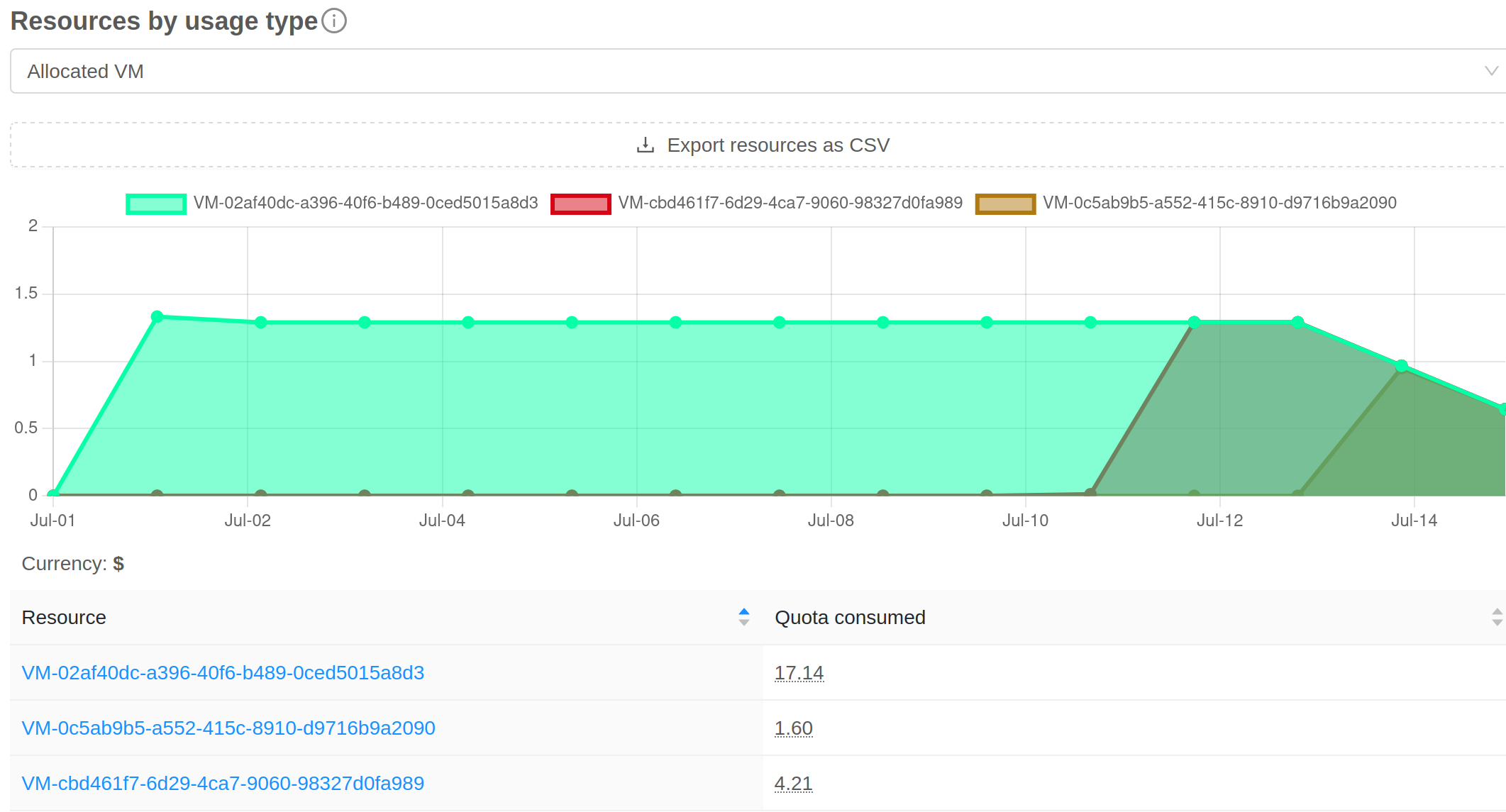
Reports can be displayed in three different modes:
Total: Displays the accumulated consumption over the selected period.
History: Displays non-cumulative consumption over time.
Cumulative History: Displays cumulative consumption over time.
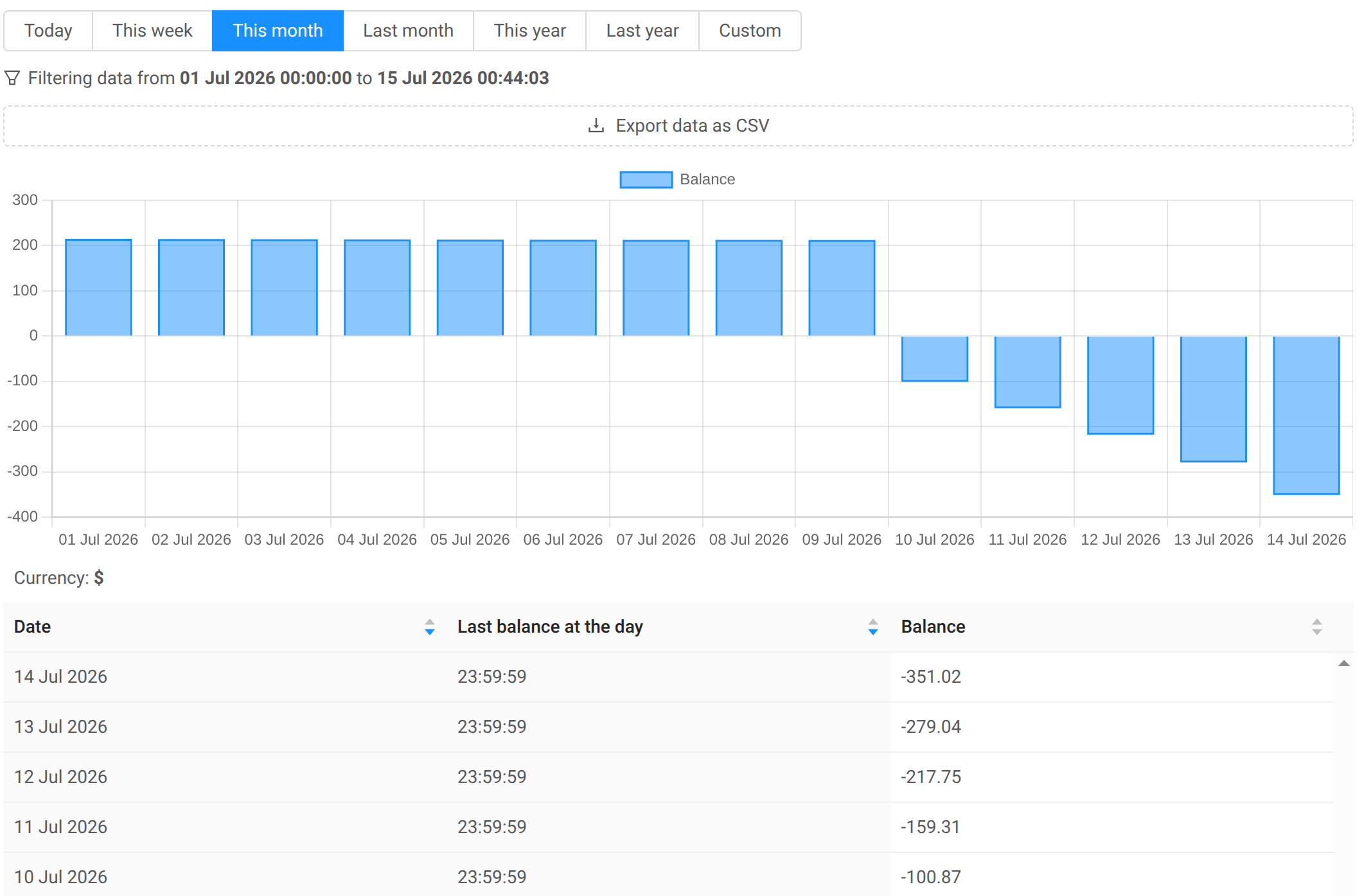
Balance Tab
The Balance tab displays the quota balance history for an Account.
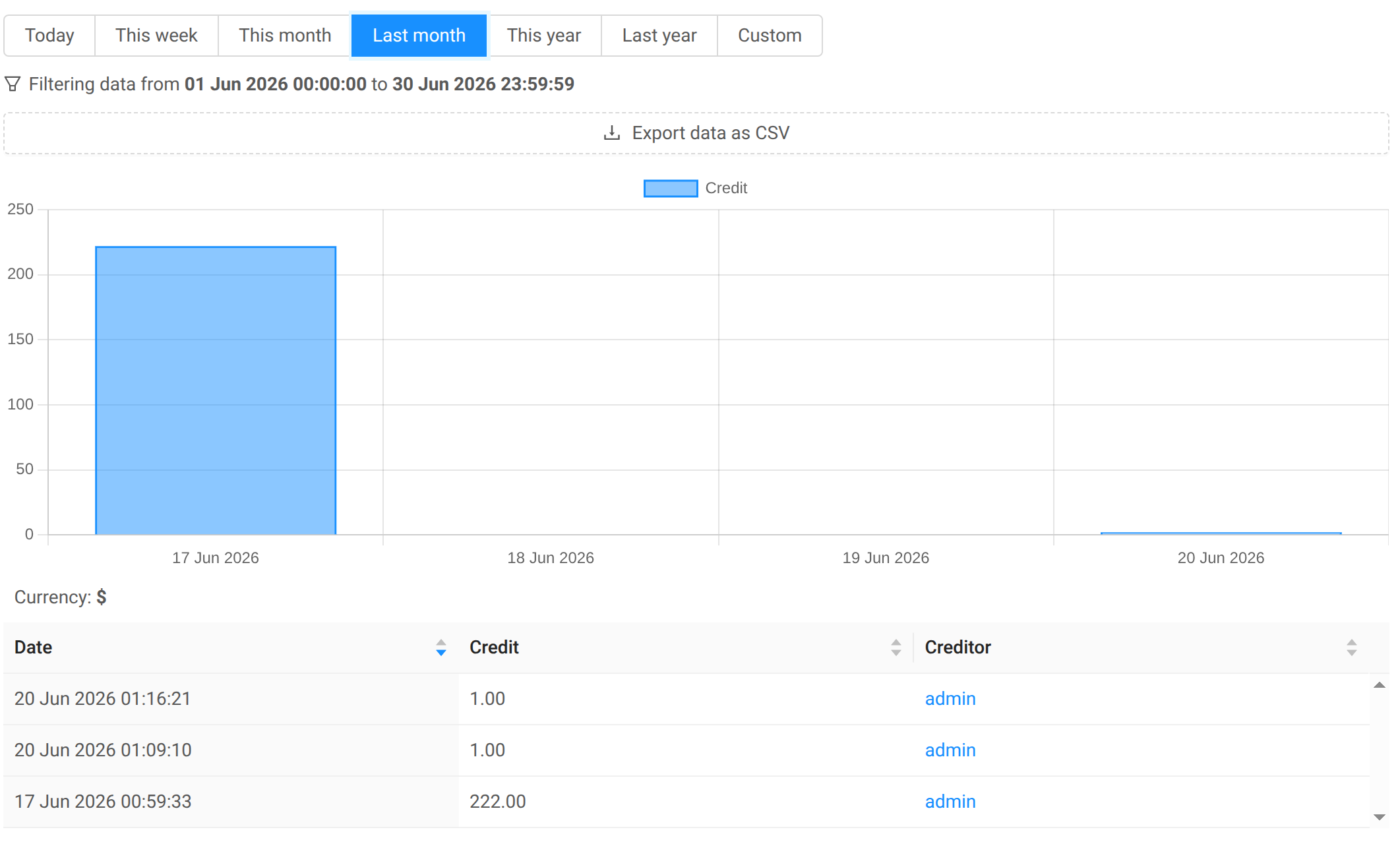
Credits Tab
The Credits tab displays the history of credit additions for an Account.
Quota Emails
Emails may be sent by the Quota Plugin to Accounts in three situations:
Low credits (
QUOTA_LOW): Sent when an Account’s balance drops below the configured minimum balance.No credits (
QUOTA_EMPTY): Sent when an Account runs out of credits.Account statement (
QUOTA_STATEMENT): Sent monthly to summarize the Account’s quota consumption.
Note
Although a QUOTA_UNLOCK_ACCOUNT email type exists, it is not currently
implemented.
SMTP Configuration
Global Setting |
Description |
|---|---|
|
Sender address for Quota notification emails
(appears in the |
|
SMTP server host. |
|
SMTP server port. |
|
Controls whether SMTP authentication is used. |
|
SMTP username (used only when
|
|
SMTP password (used only when
|
|
Controls whether StartTLS is used to secure authenticated SMTP connections. |
|
Space-separated list of enabled security
protocols (for example |
|
SMTP connection timeout, in seconds. |
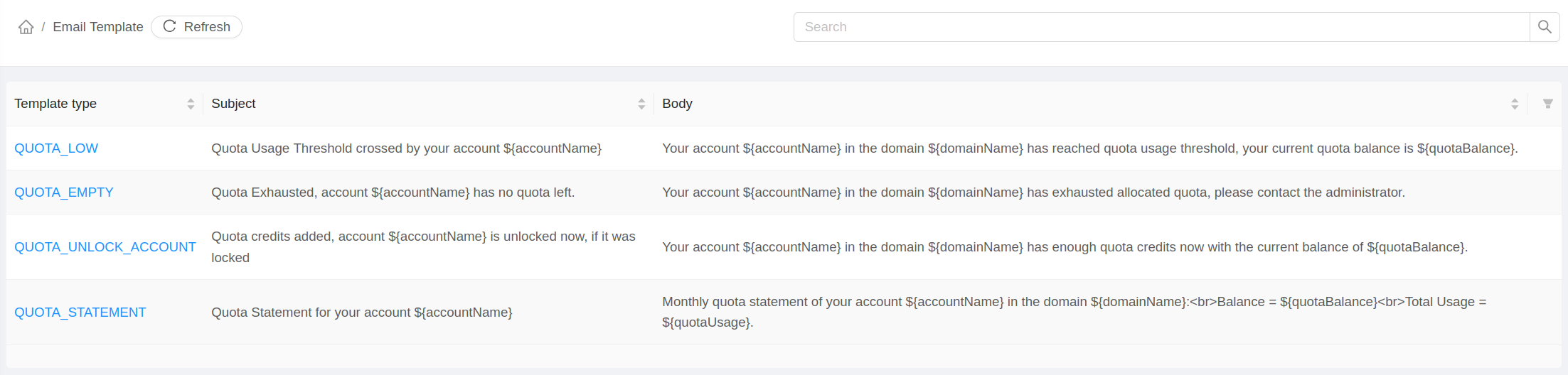
Managing Email Templates
Templates for all email types types can be configured through
the quotaEmailTemplateUpdate API. This functionality is also available
through the graphical interface.
Managing Email Subscriptions
To control whether an Account receives emails of a specific type, use
the quotaConfigureEmail API. By default, Accounts that do not have an
explicit configuration receive all emails.
To list the email subscription settings configured through the API, use the
quotaListEmailConfiguration API.